Covid 19 Staying at Home

We’re lucky to have technology at our finger tips. Working at home is so easy with virtual connectivity to the office, colleagues and clients. We’ve been use to our iMac or MacBook but now armed with an iPad Pro and a physical keyboard, working at home is just as easy. Almost every app you need is iPadOS compatible. Tools like FaceTime, Skype, Zoom and other virtual face to face apps are all the latest craze in these Covid 19 times. Many of us could be working from home for up to six months. Kids are taking virtual classes till the end of the school year. For personal communication we like FaceTime (Apple to Apple devices only) but for business communication Zoom works across platforms.

Stay safe and enjoy your time at home!

iPad Pro 4th Generation

Apple just released the new 4th Generation iPad Pro 11-inch and 12.5-inch and iPadOS 13.4. The new iPad Pros are marginally faster than the previous generation but have Pro cameras that could be used for film making. It has a new 12M ultra wide camera and a LiDAR (Light Detection and Ranging) Scanner used for measuring how long it takes light to reach an object and reflect back perfect for Augmented Reality (AR). Apple is calling the new iPad Pro with the addition of the newly announced Magic Keyboard, A Computer that is not a Computer. The new Magic Keyboard is what will make the difference. Apple has indicated that the Magic Keyboard is backward compatible with the previous generation 2008 iPad Pro.

Microsoft Office for iOS

Making a switch from a MacBook to an iPad Pro, you need to ensure you have productivity apps. Apple’s office apps like Pages, Numbers and Keynote are exceptional but if you work in a corporate environment with mixed platforms like PCs, Macs and iPads, the only way to go is Microsoft Office which has complete compatibility between MS Word, Excel, PowerPoint, OneNote and Outlook. Also there is no need to worry when collaborating on a document that formatting will be an issue between Office for Windows, Mac and iOS.

Cloud File Storage

You now have your MacBook replacement in the form of an iPad Pro, keyboard, pencil and headphones in front of you and its time to do some productive work. Question is how do you access your files? They’re stored on a network drive. You have two choices, buy a third party app like File Browser to access your network drive stored files since Apple’s Files App does not have the functionality or migrate all your network drive stored files into the cloud, which is how Apple envisioned you using the iPad Pro. Remember, the world is changing, so migrating to the cloud is now the norm. The benefit being you can now access your files from any device, iPad Pro, iPhone, Mac, Windows and any browser. Here are some options:

  • iCloud – You are probably already using iCloud for some of the functionality on your iPad and Mac like email, photos, browser shortcuts and music. Apple provides you with 5GB, so you will need buy additional iCloud storage to be fully productive.
  • Dropbox – You can signup for a free 2GB account and get additional storage for referrals. One you download the Dropbox app for iOS and sign in, your files will be available in the Files App.
  • OneDrive – If you subscribe to Office 365 you get 6 user licenses and each user automatically gets access to Microsoft’s OneDrive and 1TB of cloud storage per user.
  • GoogleDrive – When you signup for a gmail account you automatically get access to Google Drive and 15GB of cloud storage. If you use Google Docs then GoogleDrive is perfect for you as it work seemlessly.
Apple Pencil

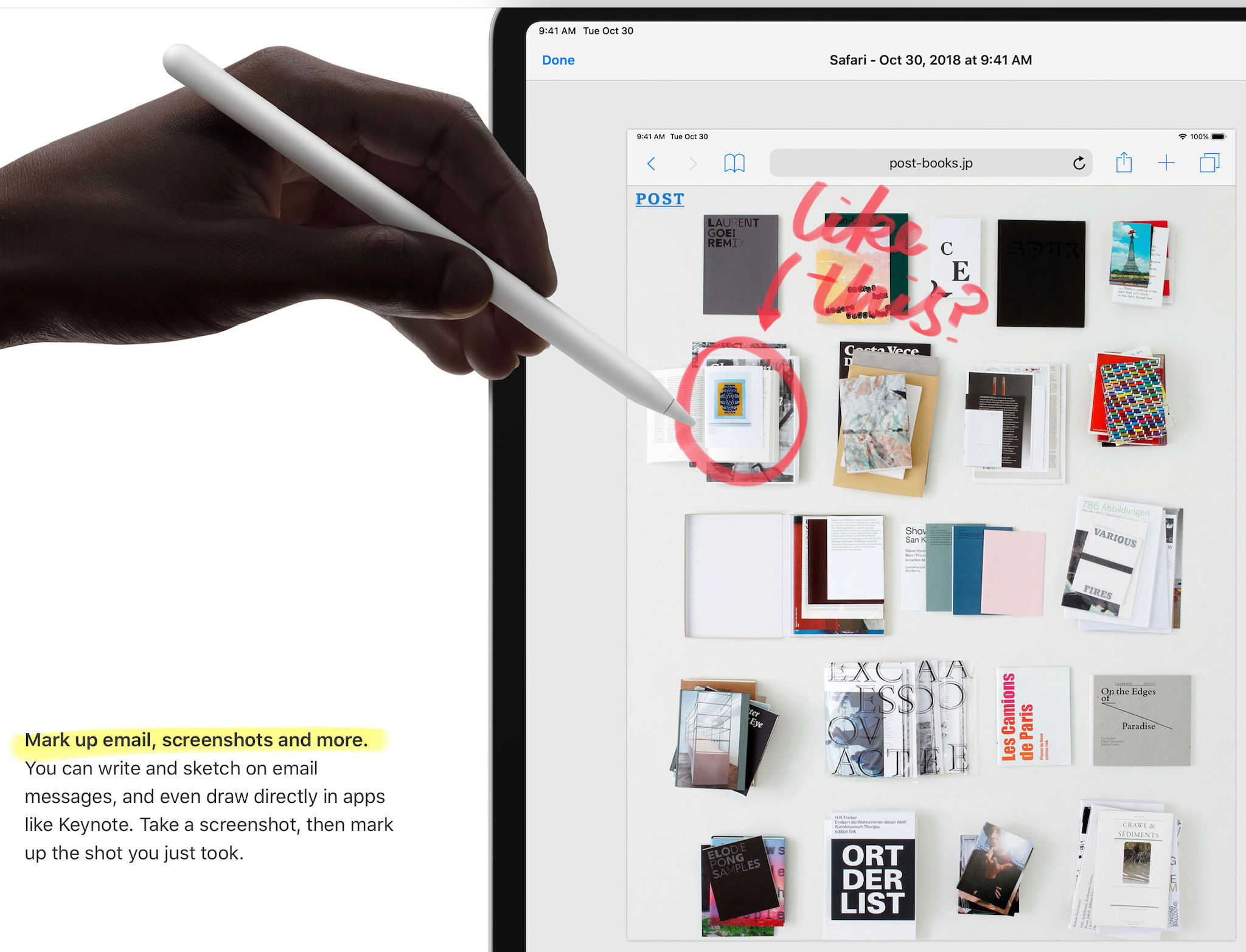
One more thing to decide on to make your MacBook replacement complete is the Apple Pencil. Question is do you need really need one? It’s not cheap so make your decision based on the type of tasks you perform regularly. Ask yourself, do you review documents and need to hightlight, markup and create annotations, do you think you’ll be drawing in any of the sketching apps or do you prefer using a pointer instead of your finger when interacting with your iPad? If any of the above is yes, then get yourself an Apple Pencil. Don’t forget when you order one online you get free engraving. Photo is care of Apple.

iPad Pro USB-C Hub

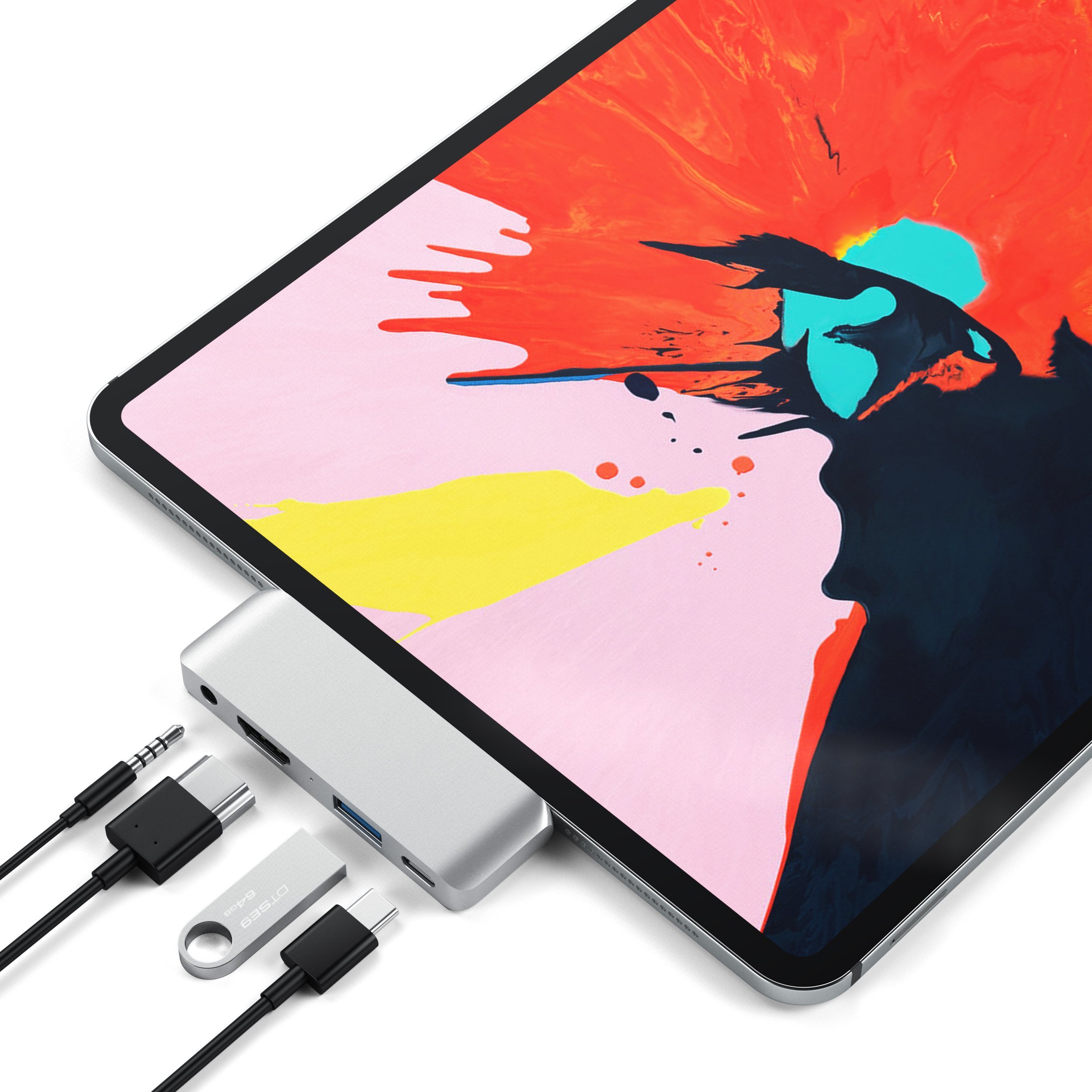
You’ve switched to an iPad Pro and might need more than an USB-C to 3.5mm headphone jack, you might also need an HDMI adapter to do presentations or an USB-A connector for other peripherals like a DLSR camera. Apple has an array of single adapters but an alternative is an USB-C hub. Satechi has a very cool Aluminum Type-C Mobile Pro Hub. It features a 4K HDMI display port, USB-A, USB-C and a 3.5mm headphone jack.

iPad Pro Headphone Jack Adapter

You’ve switched to an iPad Pro and selected your keyboard. What about headphones? The iPad Pro comes with a USB-C port, so your choices are wireless headphones, either a pair of Beats or a pair of AirPods. You can’t use wired headphones that come with your iPhone X, it uses a Lightning connector. Well, if you still have a pair of headphones with a 3.5mm jack lying around, Apple has a USB-C to 3.5mm headphone jack adapter for pretty cheap which is very handy. Too bad the iPad Pro does not come with a USB-C to Lightning adapter in the box. The world is changing so time to invest in a good pair of wireless headphones.

iPad Pro Keyboards

You have now switched from a MacBook to an iPad Pro, don’t immediately buy Apple’s Smart Keyboard Folio until you have decided if you would like your iPad Pro to feel more like a laptop or like a tablet, if you prefer a more tactile keyboard, if you want your keyboard to be detachable and if you prefer to interact more with your iPad Pro from the touch screen or from the keyboard. Here are some options:

  • Apple’s Smart Keyboard Folio – Light weight keyboard and cover which makes your iPad Pro feel like a tablet, simple keyboard layout with no function keys, magnetically attaches to the back of the iPad Pro, keys are less tactile and designed for more touch screen interaction.
  • Logitec Slim Combo – Light weight detachable keyboard and cover which makes your iPad Pro feel like a tablet, simple keyboard layout with function keys, holder attaches to the back of the iPad Pro, keys are backlit and more tactile like a laptop and designed for less touch screen interaction due to the function keys.
  • Zagg Slim Book Go – Light weight Bluetooth detachable keyboard and cover which makes your iPad Pro feel like a tablet, laptop style keyboard layout with function keys, holder attaches to the back of the iPad Pro, keys are backlit and more tactile like a laptop and designed for less touch screen interaction due to the function keys.
  • Brydge 12.9 – Aluminum laptop style keyboard with no cover which makes your iPad Pro feel like a MacBook, laptop style keyboard layout with function keys, clips attach to the bottom of the iPad Pro, keys are backlit and more tactile like a laptop and designed for less touch screen interaction due to the function keys.

Our preference is Apple’s Smart Keyboard Folio due to its simplicity and being light weight. It’s a cover and keeps the iPad Pro true to its tablet roots.